All posts by Ayman El-Hattab [MVP]

Ayman El-Hattab is a Technology Evangelist @ Nintex & a recognized industry expert focusing on helping organizations plan, design, develop, build, govern and operate enterprise collaboration solutions. You can follow Ayman on Twitter @AymanElHattab to stay updated on his upcoming activities.

Creating mailing lists for SharePoint sites and blogs [No Code Required] – Introduction

NOTE : This article was published on EndUserSharePoint.com a couple of weeks ago and because of the wonderful feedback I received, I decided to cross-post it here too.

Last week, I worked on creating a mailing list for a public facing SharePoint site. I really had some constraints because I was only allowed to use SharePoint Designer and the browser. I’m not used to these situations because I am mainly a software engineer. However, it was a very nice experience. I applied lots of knowledge and I worked around the constraints. I decided to put the experience and workarounds together into an educational series of articles to help SharePoint end users and administrators create their own mailing list without writing a single line of .NET code.

Here is a snapshot of what I ended up with last week:

44

Requirements
  1. A SharePoint form is needed, from which anonymous users can send requests to join the mailing list. We need this information to be stored somewhere on our SharePoint site.
  2. The form should be customized to validate the e-mail addresses entered by anonymous users. We also need the validation to be client-sided rather than the
    server-sided. Validation provided out of the box.
  3. When filling out the form, users should select their countries from a drop down list, which holds all the countries of the world.
  4. We need to first approve those requests before allowing users to receive our letters.
  5. Once a request is approved, an e-mail should be sent informing him/her of the approval of the request and telling how to unsubscribe from the mailing list.
  6. List administrators should be able to send e-mails to all the approved and registered users specifying some filters. For instance, the list administrator should be capable of sending e-mails to all the registered users from Canada.
After completing this set of articles, you should be capable of:
  1. Creating and configuring SharePoint Lists using SharePoint Designer.
  2. Configuring anonymous contributions for SharePoint Lists.
  3. Creating simple SharePoint Designer workflows for sending confirmation mail to list subscribers.
  4. Configuring content approval for share point lists.
  5. Creating custom SharePoint list forms.
  6. Creating Client-Side validation for SharePoint list forms.
  7. Using Data Form Web Part.
  8. Connecting SharePoint Lists to Outlook.
  9. Using the Word 2007 Mail Merge feature with SharePoint Lists.
  10. Using and creating SharePoint List Templates.
  11. Hiding SharePoint lists.
  12. Using lookup columns in SharePoint lists.

In the next part, we will create a SharePoint list based on the Contacts template provided by SharePoint. We will configure the list to allow anonymous contribution but not anonymous access. In other words, anonymous users should be able to add items but not navigate to the list data. Stay Tuned

Problems with anonymous access to custom SharePoint list forms

A couple of days ago, I had troubles with anonymous access to a custom form for a custom list. I created a list, and added a DataFormWebPart to the page using SharePoint Designer as shown below.

41

I set the page and the list to allow anonymous access, and I could get to both. However, when I opened the page with the custom list form, the DataFormWebPart displayed the following error :

42

Resolution :

Just set DataSourceMode of SPDataSource control to Webs or ListOfLists as shown below :

43

For more information about the differences between Webs and ListOfLists, See this SharePoint Designer Team Blog post for a decent explanation of these options:

http://blogs.msdn.com/sharepointdesigner/archive/2007/04/24/spdatasource-and-rollups-with-the-data-view.aspx


Tracing Service Lost Trace Events

Sometimes you will encounter something very weird in the ULS logs. The only entries that are logged are “Tracing service lost trace events” log entries. To resolve this issue, just restart your Tracing service. You can do that from the command line using the following commands:

net stop sptrace (to stop the tracing service)
net start sptrace (to start the tracing service)

40

This will do the trick for you.

In addition, you may want to check out the free SharePoint Troubleshooting issue I recently authored forUnderstanding SharePoint Journal .

Cached Timer Job Assemblies

Any time you update your custom timer job class and deploy the assembly to the global assembly cache, you must restart all the timer services in the farm. If you don’t restart the timer service, it will run the old copy of your timer job class. Yes, the timer service caches the assemblies. Restarting the SharePoint timer service is the only way to refresh the assembly cache and force it to use your updated assembly. You can achieve that from the command line using the following commands:

net stop sptimerv3
net start sptimerv3

Yes! I have learned that the hard way!

“SharePoint Troubleshooting” , A new free bonus issue of Understanding SharePoint Journal written by Me!

Just a quick note to let you know that a new free bonus issue of “Understanding SharePoint Journal” was released a couple of hours ago. The issue is titled “SharePoint Troubleshooting” and is written by me.

In that 25-page bonus issue, I will introduce you to some of the troubleshooting utilities, tools, tips, and tricks that can make your life easier in view of the fact that SharePoint troubleshooting can really be a nightmare for those who are new to the platform if it is not performed properly. The initiative for this issue came out of my late nights as a software engineer trying to troubleshoot SharePoint solutions to ship high-quality products on time.

39

You can get the issue for free from here.  I’ll also be waiting for your feedback for the issue atayman.elhattab@gmail.com

Creating mailing lists for SharePoint sites and blogs [No Code Required]

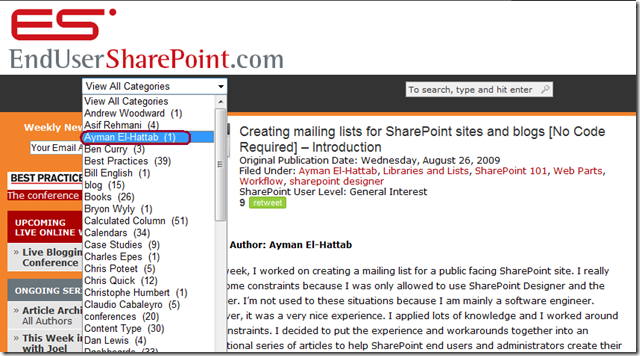
A few days ago my first article for EndUserSharePoint.com went live. This article is the first one of a series titled “Creating mailing lists for SharePoint sites and blogs [No Code Required]”. You can always follow my articles at EUSP by selecting my name from the drop down list shown at the top of the home page as illustrated in the figure below.

37

Announcing SPCountries

Have you ever found yourself in a situation where you need to create a SharePoint list that contains the names of all the countries of the world ? For me, I have faced this many times especially when developing public facing sites where I need to create forms and I need the form submitters to specify their countries of residence  along with other information.  The solution was very boring and time consuming, that is why I decided to share with you SPCountries which is a very simple feature that once activated, it creates a SharePoint list containing the names of all the countries of the world. Hope this helps 🙂

36

Get SPCountries from CodePlex : http://spcountries.codeplex.com

Forcing the execution of timer jobs

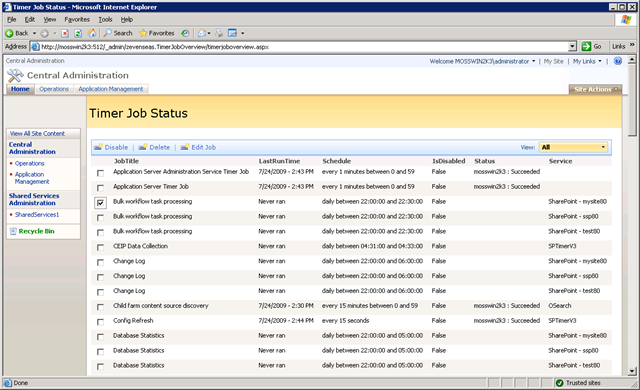
When you troubleshoot or test your custom timer job, you will probably want to instantly run the job without waiting for the job to run in schedule.

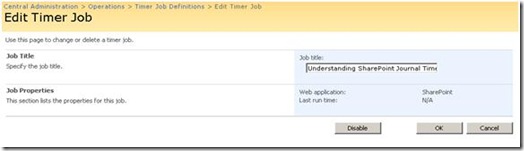
If you have observed the Timer job definitions in SharePoint central administration, you will find that it gives you the capability to disable the job definition but it doesn’t allow you to execute it.

23

Figure 1. You cannot force the execution of the jobs through the Central Administration.

Note : For the out of the box timer jobs, you can use the stsadm –o execadmsvcjobs command but this will merely execute the administrative timer jobs but it will not execute the custom ones.

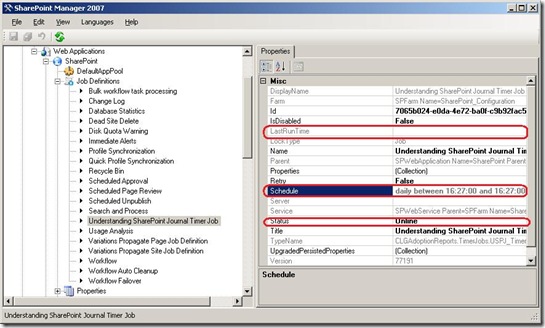
One way to work around this is changing the job schedule, deactivating and activating the feature that installs the timer jobs; this will do the trick by altering the Schedule Property of the job. You can use SharePoint Manager 2007 for monitoring the timer jobs status, schedule and the last run time. It’s very useful and time-saving rather than writing custom code to retrieve those values.

24

Figure 2. Using SharePoint Manager 2007 to monitor timer jobs.

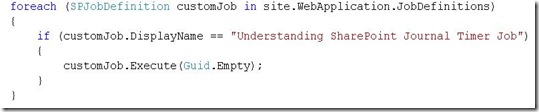
So the only solution to force custom timer jobs to execute is using SharePoint object model as follows. Below is a code snippet that does the trick

25

Note : Forcing a timer job to execute out of schedule will neither alter the LastRunTime property of the job nor modify the schedule, so don’t let that fool you.

UPDATE : After I have posted this blog post, I received a notification from Robin Meuré, informing me of a tool that he has recently created and shared with the community on CodePlex, the tool is really nifty!  It gives the administrators the ability to delete, disable and immediately run timer jobs from the browser without writing a single line of code. MARVELOUS!

26

I would like to extend a very special thank you to Robin for informing me of this tool.  Go get the tool from codeplex and I’ll be waiting here 🙂

Assembly Binding Log Viewer

Have you ever deployed your pages to SharePoint to have some binary files refusing to load and throwing the following exception?

31

Figure 1. File Not Found exception not specifying the failing assembly.

File Not Found.   at System.Reflection.Assembly._nLoad(AssemblyName fileName, String codeBase, Evidence assemblySecurity, Assembly locationHint, StackCrawlMark& stackMark, Boolean throwOnFileNotFound, Boolean forIntrospection)

Sometimes, it’s effortless to resolve this error by simply adding <%@Register> directives to reference some assemblies in your page markup, other times you will not be able to figure out what went wrong, it really could be lengthy and tiresome because the exception message never specifies the assembly that is failing to load. Luckily, Microsoft .Net Framework SDK comes with a very handy tool named “Assembly Binding Log Viewer” which can assist you diagnosing this issue.

The “Assembly Binding Log Viewer” keeps track of all assembly binding attempts that happen on your system. Although this tool ships with the .NET Framework, it’s really less known, this blog post will help you to get started with the Assembly Binding Log Viewer and understanding how you can use it to resolve this kind of exceptions.

a. Create a custom page and add the following Register directive at the top of the page :

<%@ Register Tagprefix=”UnderstandingSharePointJournal” Namespace=”USPJ.BonusIssue.SharePoint.Troubleshooting” Assembly=”USPJ.BonusIssue, Version=12.0.0.0, Culture=neutral, PublicKeyToken=71e9bce111e9429c” %>

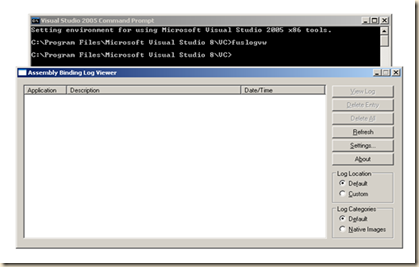
b. Go to Start >Microsoft Visual Studio 2005/2008 >Visual Studio tools->Visual Studio Command prompt and type fuslogvw. You will get a window similar to the one below.

32


Figure 2. Assembly Binding Log Viewer Window.

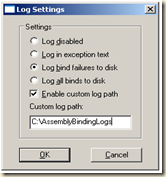
c. Click on the settings menu to bring up the settings for fuslogvw.exe. You have the choice to log all the binds that are happening or you can instruct the tool to only log the failures. It’s also very useful to capture those entries into your file system so that you can refer to them later on.
Note: One strange bug with Fuslogvw.exe is that unless you specify a custom logging directory, the logging won’t work…

33

Figure 3. fuslogvw.exe Settings dialog box.

d. Run IISRESET from the command prompt.

e. Navigate to your page from your web browser to reproduce the issue.

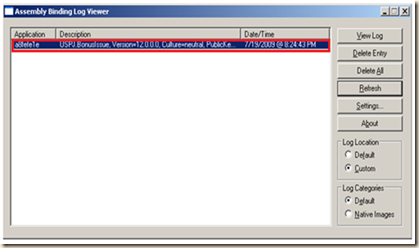
f. Click the Refresh button in the window.

34

Figure 4. fuslogvw.exe monitoring all the bind failures.

g. Now you can search for the failures and find out which assembly is causing the page to crash. In our case, the .NET framework wasn’t able to locate the assembly USPJ.BonusIssue at runtime. You can double-click any of the entries in the main window to see exactly how and what the .NET runtime was doing to look for the assemblies your page referenced.

35

Figure 5. More information about the failure by double clicking the entry.

Global Exception Handling in SharePoint

In many cases, you might want some form of centralized exception handling rather than surrounding every piece of code with Try Catch blocks. You also might want some way to log and handle unhandled exceptions and forward the end user to an error page which has the same look and feel of your site collection rather than the silly error page shipped with SharePoint. In point of fact, there is nothing worse than an error being thrown at the face of the end user and you cannot figure out what caused the problem because the exception is unhandled and it is not revealed anywhere in the log files.

A great way for centralized logging, exception handling and providing a friendly error page is to employ a global exception handler at the application level. This will catch any unhandled exceptions, log them, clear them and redirect the user to a fully branded page. You can also extend your global exception handler to send notification mails to the site collection administrator informing him/her that an unhandled exception has occurred.

The way you can implement global exception handling in regular ASP.NET applications is via the Global.asax file which can enclose code that responds to application-level events. These are events that are raised at specific points during the running of the asp.net application. One of those events is the Application_Error event which fires whenever an unhandled exception occurs in the application; the next code snippet demonstrates the Application_Error event.

protected void Application_Error(object sender, EventArgs e)

{

// Code that runs when an unhandled error occurs

Exception unhandledException = Server.GetLastError().GetBaseException();

SharePointLogger.LogException(unhandledException);

Server.ClearError();

Server.Transfer(“FriendlyErrorPage.aspx”);

}

Commence the Windows Explorer and navigate to the physical root directory of your SharePoint web application, there you should see the global.asax file. SharePoint automatically adds this file every time you create a new SharePoint web application. If you open this file in Visual Studio, you should see the following:

27

Figure 1. Global.asax file for SharePoint web applications.

As you see, the global.asax file contains two directives. The @Assembly directive references the Microsoft.SharePoint.dll assembly, which contains the ApplicationRuntime namespace. Note that the Inherits attribute of the @Application directive instructs ASP.NET to use SPHttpApplication as the base class for the class that it dynamically creates and instantiates. Let’s use the .NET Reflector to investigate this class; the next figure demonstrates this in action. If you don’t know what .NET Reflector is, refer to the “Troubleshooting Toolbox” section at the end of the issue.

28

Figure 2. Using .NET Reflector to investigate SharePoint Global.asax.

As you might have concluded, you cannot trap unhandled exceptions through Global.asax; this place has been taken by the product itself. Alternatively, you need to hook into the ASP.NET HTTP pipeline by creating an HTTP Module. The next figure shows a sample HTTP Module that you can start with to create your own global exception handler.

30

Figure 3. Using HTTP Module to globally handle and log unhandled exceptions.