Ayman El-Hattab is a Technology Evangelist @ Nintex & a recognized industry expert focusing on helping organizations plan, design, develop, build, govern and operate enterprise collaboration solutions. You can follow Ayman on Twitter @AymanElHattab to stay updated on his upcoming activities.
Yesterday, Charles Sterling from the Visual Studio Product Team announced the availability of February CTP for Visual Studio Update 2. There is a bunch of great features that will be introduced in Update 2, you can get a glimpse of those features and download the CTP from here.
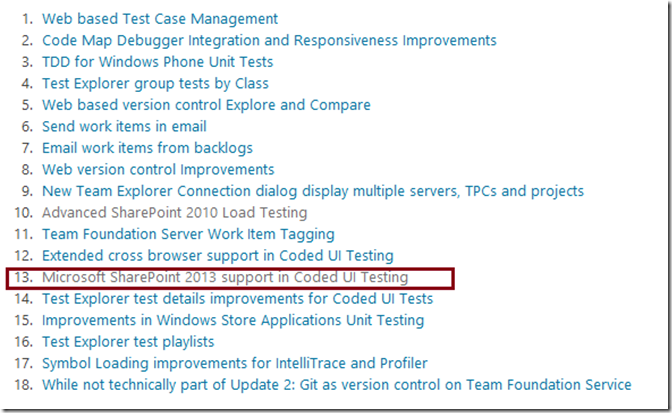
The great news for me is that SharePoint 2013 is finally supported for Coded UI Testing as shown in the feature list below.
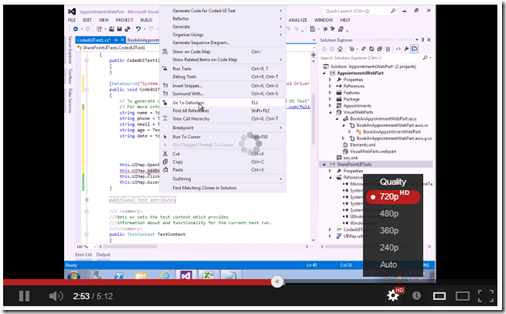
To understand more about Coded UI Testing for SharePoint, you can watch this video. It’s in Arabic but you should understand what’s happening even if you are not an Arabic speaker.
Now that I’m done with the whole video series, I have some updates, thoughts and asks that I’d like to share with you.
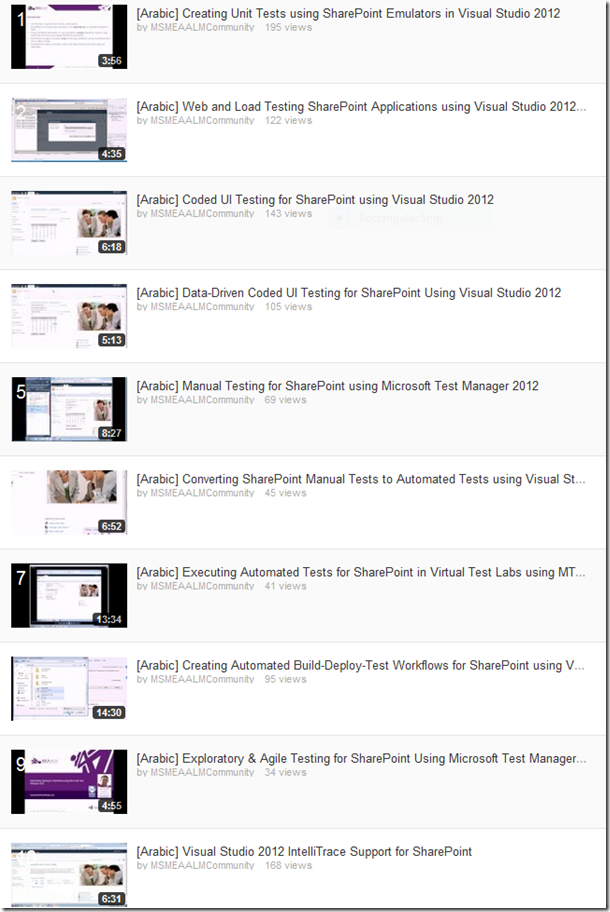
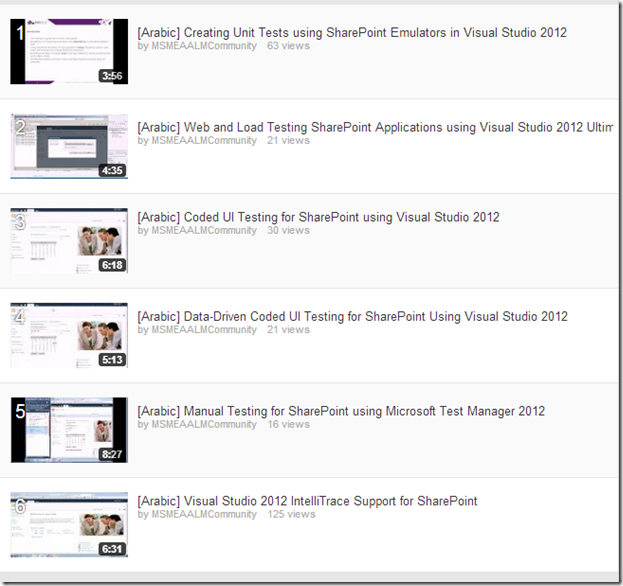
Updates: I’ve updated the YouTube Playlist and reordered the videos so that the whole series makes more sense for those who are not that familiar with Visual Studio ALM.
Asks: I’ve received many messages through email, Facebook & Twitter from non-Arabic speakers asking for the same series in English; some asked for a series of blog posts while others asked for videos in the same way I created the Arabic ones. I’d like to gather more feedback about this, what would you like to see ?
I woke up last Thursday to find many Facebook tags, mentions and notifications. Oh, harmon.ie has put together a list of the top SharePoint Influencers and featured them in The European SharePoint Conference 2013 which took place in Copenhagen, Denmark. I’d like to thank Harmon.ie alot for adding me to this list although Egypt is an African country 🙂
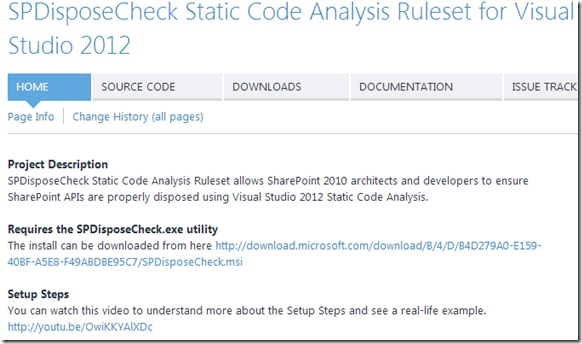
Do you remember the SPDisposeCheck Static Analysis RuleSet for Visual Studio 2008/10 ? It was pretty nifty, I’ve used it in many SharePoint 2010 projects and it did a great job. Yesterday, I decided to upgrade it to work with Visual Studio 2012 and I’ve published it today on CodePlex. You can get it from here.
This wonderful RulSset has been originally created by Stephen Vick, I just tweaked it a little bit to make it work with Visual Studio 2012.
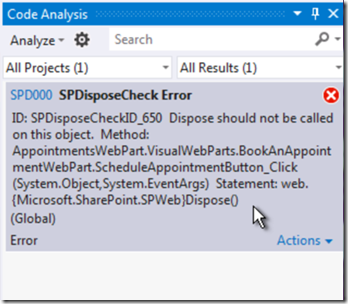
By using SPDisposeCheck from within your Code Analysis, you can avoid any future memory leaks that might occur because your developers didn’t properly dispose the SharePoint API objects. You can even prevent bad code from entering your Source Control system by creating a check-in policy that performs Static Code Analysis and spot any issues earlier.
I have created a video that explains the setup steps and shows you a quick example. You can watch it here.
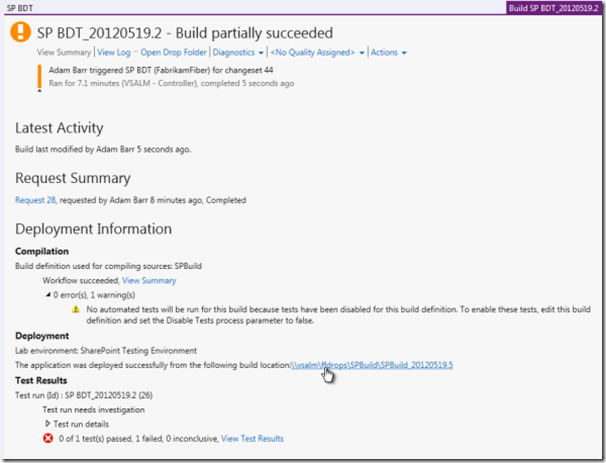
As mentioned in the previous video, you can create a build-deploy-test workflow using Visual Studio 2012 to deploy and test your SharePoint Applications when you run a build. This lets you schedule and run the build, deployment, and testing of your SharePoint application with one build process. Build-deploy-test workflows work with Lab Management to deploy your applications to a lab environment and run tests on them as part of the build process. You can watch a detailed video for the whole process here.
Please note that you might need to change the quality to 720 p (HD) as shown below for the best viewing experience.
While performing automated testing for your SharePoint Solutions, have you ever wondered how the Automated Test Cases get executed on remote environments that smoothly? They just work and you don’t have to copy the Automation DLLs to the remote machines.
For sure they get copied automatically somewhere, there is no magic here, but the question is where do they get copied ? The answer is in this video !
Oh, and the DLLs get deleted once the test is finished.
By the way, you won’t be able to run Automated Tests from Microsoft Test Manager unless you assign a Build to your Test Plan. This makes perfect sense, the Test Controller needs to know the Build Drop Folder from which it will copy the DLLs to the remote testing environment.
Note: You might need to change the quality to 720 p (HD) as shown above for the best viewing experience.
In today’s video, I’ll show you how to execute the Automated Test from Microsoft Test Manager 2012 in the same way we executed a Manual Test. You can watch the video here.
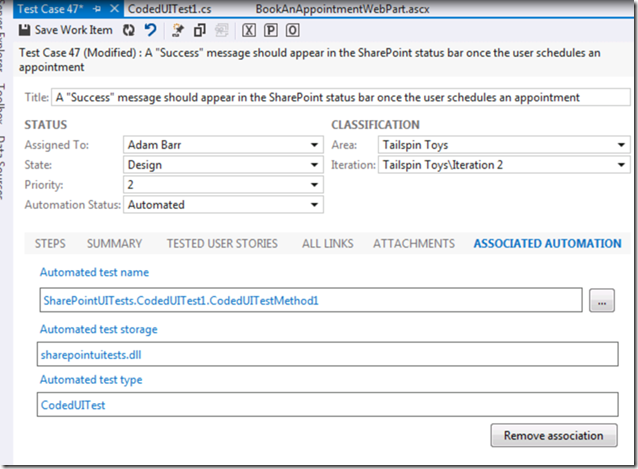
When you run automated tests in Microsoft Test Manager, you must run them in a lab environment. To run automated tests in a lab environment, you must associate your automated tests with test cases, and then add the test cases to a test suite in a test plan.
Here are the steps performed in the video:
Create a Virtual Test Lab for SharePoint using Microsoft Test Manager & Visual Studio 2012 Lab Management
Build & Install the SharePoint application in the Testing Environment.
Create new “Test Settings” (Data Collection & Diagnostic Data Adapters)
Create a new Test Plan
Configure the Test Plan (Test Settings & Test Environment)
Add the Automated Test to the Test Plan.
Create a Build Definition & Queue a new build.
Assign the build to the Test Plan
Run the automated Test Case from Microsoft Test Manager
View & Analyze Results.
Please note that you might need to change the quality to 720 p (HD) as shown below for the best viewing experience.
This video is part of the SharePoint Testing & Troubleshooting Arabic Video Series.
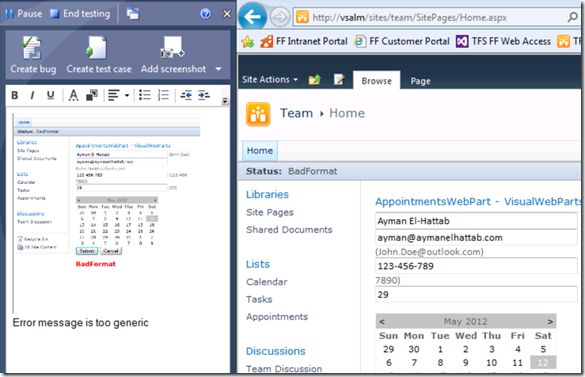
In today’s video, you will learn how to do Exploratory Testing for your SharePoint solutions using Microsoft Test Manager 2012. You will learn about how exploratory testing (also called XT, or agile testing) has become a first-class experience in the toolset. This allows a tester to more flexibly test the underlying SharePoint Application without relying solely on formal test cases. Meanwhile, Microsoft Test Manager will continue to capture rich diagnostics about the application being tested which can be delivered to the development team if a bug is discovered. You can watch the video from here.
Note: You might need to change the quality to 720 p (HD) as shown above for the best viewing experience.
In the previous video (Manual Testing for SharePoint using Microsoft Test Manager 2012), I’ve showed you how you can author, run and replay manual tests for SharePoint using Microsoft Test Manager 2012. In today’s video, I’ll take this manual test a step further by converting it into a fully automated test using Coded UI Tests in Visual Studio 2012. You can watch the video here.
If you have been following my blog in December 2012, you have most probably felt my tendency to focus on SharePoint Testing & Troubleshooting. That’s true, it’s a green field that nobody is tackling nowadays and I believe it’s very important for enhancing the overall SharePoint Application lifecycle & delivery.
The new features and enhancements in Visual Studio 2012 Update 1 are really cool; now we can say that we have a complete ALM story for building SharePoint Solutions.
I just wanted to take a moment to let you know about my upcoming activities during the first Quarter of 2013.
January 2013
– Arabic Video : Converting SharePoint Manual Tests to Automated ones using Visual Studio 2012.
– Arabic Video : Exploratory Testing for SharePoint using Microsoft Test Manager 2012.
– Arabic Video : Executing SharePoint Automated Tests in Virtual Lab Environments using Microsoft Test Manager 2012.
February 2013
– English Video : Coded UI Testing for SharePoint using Visual Studio 2012.
– English Video : Data-Driven Coded UI Testing for SharePoint Using Visual Studio 2012.
– English Video : Manual Testing for SharePoint using Microsoft Test Manager 2012. – English Video : Converting SharePoint Manual Tests to Automated ones using Visual Studio 2012.
March 2013
– English Video : Executing SharePoint Automated Tests in Virtual Lab Environments using Microsoft Test Manager 2012.
– English Video : Exploratory Testing for SharePoint using Visual Studio 2012
– English Video : Visual Studio 2012 IntelliTrace Support for SharePoint





 Ayman El-Hattab's Technology Blog