Protecting SharePoint lists against deleteion!

That was a problem that we encountered in one of our projects. We needed to prevent some lists and libraries from being deleted even by site collection adminsitartors.

Actually there are two ways to do that :

1) Using Event Handlers
Firstly I though of extending SPListEventReceiver, I expected the presence of a function called “ListDeleting”. Unfortunately, there is no such thing as “ListDeleting”.

Ali Al-Kahki ( My ITWorx colleague ) came up with a very nice workaround listed below :

public override void ItemDeleting(SPItemEventProperties properties)
{
if (properties.ListItemId == 0)
{
properties.Cancel = true;
properties.ErrorMessage = “You are not allowed to delete the list”;
}
}

2) Using SPList.AllowDeletion

When I was exploring the SharePoint object model, I discovered a very interesting property in the SPList class. When setting this property to false, the “Delete list” option will not be displayed in the list settings page .Even if you try to delete the list programmatically an exception will be thrown as long as this property is set to false.

SPList list = web.GetList(web.ServerRelativeUrl+”/Lists/ListName”);
list.AllowDeletion = false;
list.update();

I prefer the second approach but I like Ali’s workaround 🙂

MSDN Social Forums : Conversation about using resources in features definition files!

This morning, i was surfing the SharePoint forum @ msdn social forums searching for some stuff. A guy there was asking how he could globalize his features definition files ( removing language specific contenrs ) and obtaining those values dynamically from resources files. His company was developing a language pack for a service they offer built on MOSS 2007.
I answered his question , he marked it as answered so I just thought of sharing this conversation with you.
http://social.msdn.microsoft.com/Forums/en-US/sharepointdevelopment/thread/c58cf229-b219-4491-b25d-c97c3305901a/#837904e3-0a50-45f5-aca8-fc566407798b

Simplifying SharePoint debugging by creating the troubleshooting toolbox!

This is the title of my first article for http://www.sharepointmagazine.net/ where I introduce some of the troubleshooting utilities and tools that can really make a SharePoint developer’s life easier since troubleshooting can really be a nightmare for those who are new to the sharepoint platform.
Waiting for your feedback 🙂
http://sharepointmagazine.net/technical/development/getting-started-with-sharepoint-programming-simplifying-sharepoint-debugging-by-creating-the-troubleshooting-toolbox

Restricted Read Permission Level

When you create a site collection from MOSS publishing site template , you get an OOB permission level called “Restricted Read” . The description of Restricted Read in SharePoint is “Can view pages and documents, but cannot view historical versions or review user rights information.”
This is true. But, you can also use this permission level to give users permission to open items in a list without letting them to navigate to the list and enumerate the list items. For example, if you have a document that you want to share with all the portal users, you can upload it to a document library and provide a link from the home page to it and you can still prevent the portal users from browsing the document library directly.
Nice and easy 🙂

Cannot access SSP administration site collection

Me and my colleagues @ ITWorx came across this weird issue on different environments when trying to access the SSP administration site collection.

Symptoms : When we try to navigate to the SSP administration site default page, we receive the error highlighted in red below. However, we were able to access other SSP administrative pages by typing the URL in the browser.
“Description: An error occurred during the parsing of a resource required to service this request. Please review the following specific parse error details and modify your source file appropriately. 
Parser Error Message: The base type 
‘Microsoft.Office.Server.Internal.UI.SharedServicesAdminDefaultPage’ is not allowed for this page. The type is not registered as safe.”

Resolution: Add the following line to the SafeControls Section in the web.config of the SSP web application.

<SafeControl Assembly=”Microsoft.Office.Server.UI, Version=12.0.0.0, Culture=neutral, PublicKeyToken=71e9bce111e9429c” Namespace=”Microsoft.Office.Server.Internal.UI” TypeName=”*” />

It’s also worth mentioning that my friend Amir ElKady bought me a Pepsi Can for solving him this issue 🙂
Thanks Amir

Limited Access ???

A question that I always receive from my colleagues! What is the limited access permission level ?
Users with permissions to access specific lists ONLY, will have Limited Access permission level within the parent site. And this works in the same way for list items and list folders. Remember that a list inherits from a site and a folder inherits from a list and a list item inherits from a folder or a list. The Limited Access permission level cannot be customized or deleted and you cannot assign this permission level to users or SharePoint groups.
For more information about “Limited Access” permission level, I’d recommend usingSPLimitedAccessDiscovery which breaks down why some accounts show up on SharePoint sites as “Limited Access”.

SharePoint List Association Manager

AW Systems has just released an open source tool called SLAM (SharePoint List Association Manager). Check it out now on CodePlex at http://www.codeplex.com/SLAM.

SLAM lets us do just that by allowing developers to describe complex relationships between lists and content types in a way not previously possible in SharePoint (at least not without a great deal of time and effort). With SLAM, these associations are managed automatically. Developers can then concentrate on building web parts and Custom Field Types that draw on those relationships using familiar and straightforward SQL queries.

SharePoint Customization Tricks – Part 3

This multipart series of articles is intended to help you getting ramped up with SharePoint Customization. It’s about modifying the default SharePoint user experience, list forms customization, branding, skinning SharePoint portals, etc.

In Part 1, I introduced a generic function that you can use to hide the list view toolbar menu items (e.g. New Item, Upload, Edit in Grid view, etc.). In Part 2, I showed you how to remove items from the list form toolbar. If you haven’t read both posts yet, I would encourage you do to that first .

After posting the previous articles, I received a lot of e-mails from SharePointers asking how to rename the items in the list form toolbar. That’s why I decided to write Part 3 in the series. After I finished writing the article and taking some snapshots, another SharePointer asked me on MSDN Forums if it’s possible to remove the Text while retaining the images, for instance, removing “Delete Item” while retaining the (X) rendered beside it. Today I’ll show you to do both tasks by JavaScript.

Trick #4: Renaming List Form Toolbar Items!

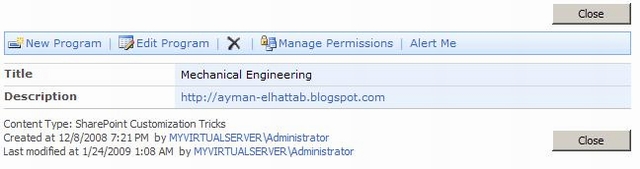
Sometimes, you need to rename some items in the toolbar rendered at the top of DispForm.aspx to match the List Name. For instance, you have a custom list named “Programs” that stores the courses offered by a university. It would be better to have “New Program” rather than the default “New Item” and “Edit Program” rather than “Edit Item”. Sometimes, you just need to totally delete the text and just leave the images with a tooltip that explains the action performed on clicking them.

Before
6


After

7

This function can be used to achieve both tasks, just call the function passing the old and new names of the item. For instance if you need to rename “Add Item” to “Add Program”, use renameFormMenuItems(“Add Item”,”Add Program”);. In case you need to remove the text and leave the image, call the function passing an empty string as the new name as follows: renameFormMenuItems(“Delete Item”,””);.

Download Function from here

Kindly note that the function is case sensitive, so “New Item” will work while “nEw iTeM” is not gonna work.

Nice and easy, isn’t it?

Now a question is imposing itself, how can we use this function? The answer is the content editor web part; please refer to trick #3 in the previous article for more information.

What about hiding the toolbar altogether?

8

There are a lot of solutions that imply unghosting the page using SharePoint Designer, but I don’t prefer those solutions! Again, let’s perform this task using JavaScript. I’ve included two functions in the zip file, one for renaming the toolbar items and the other for hiding the toolbar altogether! Waiting for your feedback.

SharePoint Customization Tricks – Part 4

This multipart series of articles is intended to help you getting ramped up with SharePoint Customization. It’s about modifying the default SharePoint user experience, list forms customization, branding, skinning SharePoint portals, etc.

In Part 1, I introduced a generic function that you can use to hide the list view toolbar menu items (e.g. New Item, Upload, Edit in Grid view, etc.). In Part 2, I showed you how to remove items from the list form toolbar. If you haven’t read both posts yet, I would encourage you do to that first .

After posting the previous articles, I received a lot of e-mails from SharePointers asking how to rename the items in the list form toolbar. That’s why I decided to write Part 3 in the series. After I finished writing the article and taking some snapshots, another SharePointer asked me on MSDN Forums if it’s possible to remove the Text while retaining the images, for instance, removing “Delete Item” while retaining the (X) rendered beside it. Today I’ll show you to do both tasks by JavaScript.

Trick #4: Renaming List Form Toolbar Items!

Sometimes, you need to rename some items in the toolbar rendered at the top of DispForm.aspx to match the List Name. For instance, you have a custom list named “Programs” that stores the courses offered by a university. It would be better to have “New Program” rather than the default “New Item” and “Edit Program” rather than “Edit Item”. Sometimes, you just need to totally delete the text and just leave the images with a tooltip that explains the action performed on clicking them.

Before

6

After

7

This function can be used to achieve both tasks, just call the function passing the old and new names of the item. For instance if you need to rename “Add Item” to “Add Program”, use renameFormMenuItems(“Add Item”,”Add Program”);. In case you need to remove the text and leave the image, call the function passing an empty string as the new name as follows: renameFormMenuItems(“Delete Item”,””);.

Download Function from here

Kindly note that the function is case sensitive, so “New Item” will work while “nEw iTeM” is not gonna work.

Nice and easy, isn’t it?

Now a question is imposing itself, how can we use this function? The answer is the content editor web part; please refer to trick #3 in the previous article for more information.

What about hiding the toolbar altogether?

8

There are a lot of solutions that imply unghosting the page using SharePoint Designer, but I don’t prefer those solutions! Again, let’s perform this task using JavaScript. I’ve included two functions in the zip file, one for renaming the toolbar items and the other for hiding the toolbar altogether! Waiting for your feedback.

Quick-Hit Technology Thoughts from a Territory Manager @ Nintex, Microsoft Regional Director and 6x Microsoft MVP