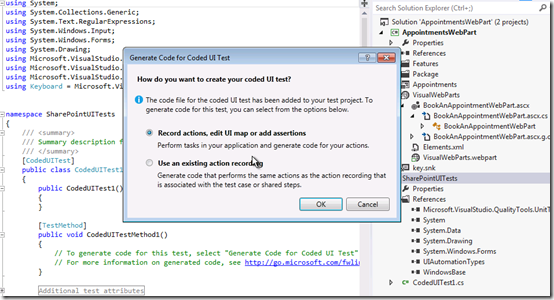
You can use Visual Studio 2012 to create automated tests of the user interface (UI) known as coded UI tests. These tests provide functional testing of the user interface and validation of user interface controls. Automated UI tests enable you to test that the user interface is functioning correctly after code changes. They are quicker to run than manual tests. Therefore, you can run them more frequently.
Visual Studio 2010 partially supported Coded UI Testing for SharePoint while Visual Studio 2012 was pretty close to fully supporting this but there were a few SharePoint specific issues that the product team wasn’t able to address that made CodedUI (functional testing) not work well for SharePoint. In Visual Studio 2012 Update 1, those issues were addressed and now Coded UI Testing is fully supported for SharePoint 2010.
I’ve recorded a quick video (in Arabic) to help you quickly get started with Coded UI Testing for SharePoint, you can watch the video here
Please note that you might need to change the quality to 720 px (HD) as shown below for the best experience :
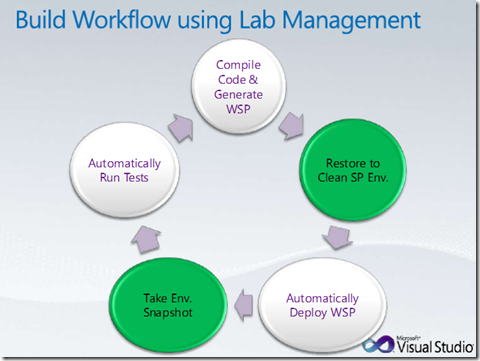
Whether experienced or novice, most SharePoint development teams can improve their processes with the help of Team Foundation Server and Visual Studio – specifically with automated WSP builds and VS2010 Coded UI testing (which can have a much lower barrier to entry than unit testing). When a few of these capabilities are strung together, the results are incredible for dev teams. In TechEd 2012, Jay Schmelzer delivered a very good session covering the following:
Automating the build,
deploying the resulting WSPs to a remote SharePoint environment
This is a very detailed step-by-step video series for Installing SharePoint 2010 & SQL Server 2012 on Windows Server 2012.
Installing Windows Server 2012
Configuring the Local Policies
Adding .NET 3.5 Windows Feature
Installing SQL Server 2012
Configuring Analysis Services to Recover on Failure
Adding the Required Roles and Features
Emulating the Exit Code
Installing SharePoint 2010 Prerequisites
Installing SharePoint Server 2010
Configuring the Default Application Pool
Configuring SharePoint Server 2010
Your feedback is very much appreciated ..
Happy new year! I wish you a fantastic 2013… May all your wishes come true; health, happiness, peace, fulfillment, prosperity …. all beautiful things to you, your families and loved ones, your countries, your people.
As the ‘SharePoint Practice Lead’ for MEA ALM Community and as promised during the official community launch, I’ve created a video series in Arabic to explain & demonstrate SharePoint Testing & Troubleshooting using Visual Studio 2012 & Microsoft Test Manager 2012. I’ve included all the videos in a YouTube playlist, you can access the list from here.
Here are also links to the videos that I created so far.
This is one of the presentations that I love to deliver .. Along with cool demos about using Twitter & FaceBook API’s & Weather.msn.com REST API’s, the audience always love this type of SharePoint demos
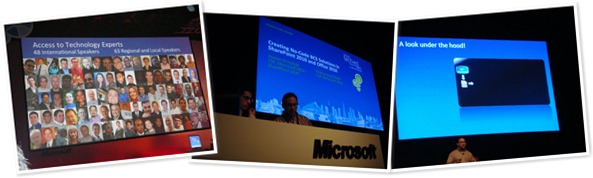
As per the requests I received after my sessions at Microsoft TechEd Middle East 2011, I’ll be posting the slide decks of my sessions here along with some photos (I know I know, you might not be interested in this)
I’ll start today with the session I delivered in the Pre-TechEd day.
Title: Creating No-Code BCS Solutions in SharePoint 2010 and Office 2010
Track: Office and SharePoint (PRE301)
Speakers: Ayman El-Hattab, Muhammed Nabil
Session Type: Pre-Conference Seminar
Room: Green Room 2 | Level: 300 – Advanced
Description: With the introduction of Business Connectivity Services (BCS) in SharePoint 2010, It’s now easy to build no-code productivity solutions that extend LOB Systems to the user level by means of powerful and familiar interfaces (and what’s more familiar than Office?). This session introduces BCS, Office Business Applications (OBA) and shows the power that SharePoint 2010, Office 2010 and BCS brings to the table.











 Ayman El-Hattab's Technology Blog