Category Archives: SharePoint Development

More About Feature Scope

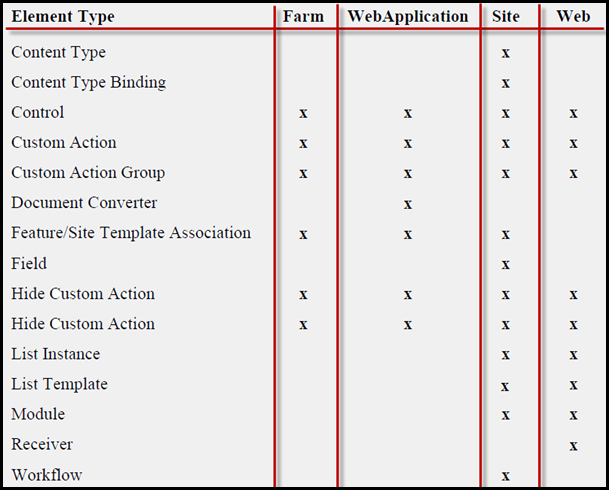
Features are scoped, this means that you can have a feature activated at the farm, web application, site collection (site) , or site level (web). When a feature is activated at a scope, it also affects subscopes, so if you use a web application–scoped feature to add a custom action somewhere, then every site collection and every site beneath the web application will have the same custom action.You can combine different elements within a single feature as long as the elements are of compatible scope.

The following table lists some feature elements and the available scopes for each.

4


As you might have noticed, some features are available at more than one scope and the scope you select will depend on the granularity you need. If you want to add a custom action to the Site Actions menu of every site in every Web application, you can set the scope of the feature in which the element is defined to Farm. If you want to affect a single web within a site collection, set the scope to Web. Other features are available at only one or two scopes. For example, site columns (Field element) and content types only allow Site scope while List Instances and List Templates allow Site and Web scopes.

This does lead to a bit of a challenge when you want to add a web-scoped list template where you add some custom fields, which are site-scoped. More about activation challenges later…

Note: This is an excerpt from a lecture that I teach at USPJA

Replacing Signout.aspx in SharePoint 2010

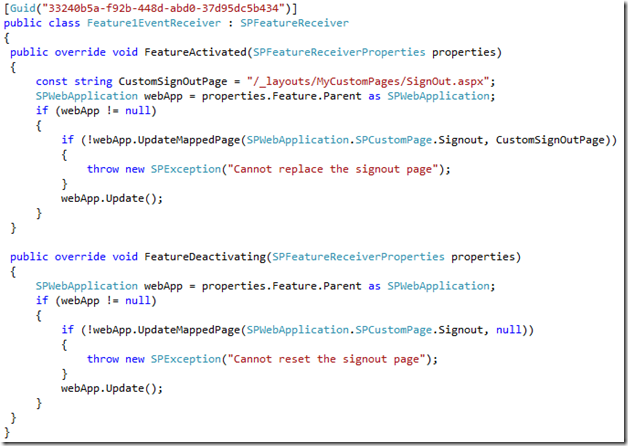
Yes, this was a common requirement in SharePoint 2007 and there wasn’t an easy and supportable approach to achieve that. Now in SharePoint 2010, it’s as easy as calling a method, specifying the page that you want to replace (for instance: Signout, error, access denied, ..) ,the URL of your new custom page and that’s it!

The following feature receiver replaces the default SignOut page with a custom one on activation and resets the SignOut page to the default one on deactivation.

1


You can also replace other pages like AccessDenied.aspx, Confirmation.aspx, Error.aspx, Login.aspx, ReqAcc.aspx, SignOut.aspx or WebDeleted.aspx by specifying a member of SPWebApplication.SPCustomPage enum.

Interesting, eh ?

Setting status messages from the server side using SPPageStatusSetter

As you might know, in SharePoint 2010, you can add status messages in the OOB status bar that renders just below the ribbon and the top navigation menu. There are lots of useful blog posts and tutorials showing how you can achieve that in javascript using SharePoint 2010 UI Framework. However, there is almost no tutorials or enough documentation about SPPageStatusSetter class which enables you to add status messages and achieve the same level of control from the server side using the powerful .NET server side languages.

Here is how you can do that using C# , the code is self-explanatory.

4


And here is the result:

5


Also note that SPPageStatusSetter class is in Microsoft.SharePoint.WebControls namespace which means that it’s not available in SandBoxed solutions.

SharePoint 2010 UI Tips

SharePoint 2010 ships with a brand new framework for delivering compelling user experiences for custom applications created using the SharePoint platform. Waldek Mastykarz [SharePoint MVP] has done a great job highlighting some of the benefits of the UI framework and how developers can make use of it in custom applications.

Showing persistent messages using the SharePoint 2010 Status bar: SharePoint 2010 UI tip #1
Showing transient messages using the SharePoint 2010 Notification Area – SharePoint 2010 UI tip #2

I’ll be posting more about the new UI framework shortly, stay tuned!

Understanding SharePoint Sandbox Solutions

Many folks asked me about Sandboxed solutions and whether they are good or bad. IMHO, they are neither good nor bad, but at least they are the only option for hosting scenarios . Besides, they make more sense for me than creating custom CAS policies.

In any case, to fully understand SharePoint Sandboxed solution, check the following resources (It will be more beneficial for you if you read them in the order specified):

1. SharePoint 2010 Sandbox solutions, the definitive guide by Sahil Malik
2. SharePoint 2010 Sandbox solutions are bad by Doug Ware
3. Sandbox solutions are pretty damn good by Sahil Malik (Make sure to read the comments)
4. A Reply to Sahil Malik’s Defense of the Sandbox Architecture by Doug Ware
5. You can deploy WebParts as Sandboxed solutions but … by Sahil Malik

Weird behavior of Post Synchronous ItemUpdated event attached to libraries in SharePoint 2010

This blog post by fellow SharePoint MVP, Randy Williams has always been a good reference for me when working with SharePoint 2007 event receivers. I have decided to test Randy’s finding against SharePoint 2010 and extend his great work by taking into account the newly introduced “Post Synchronous” events.

The following table summarizes how Synchronous, Asynchronous and Post Synchronous events work with lists and libraries in SharePoint 2010.

List BeforePropoerties AfterProperties properties.ListItem
ItemAdding No value New value Null
ItemAdded No value New value New value
ItemAdded – sync No value New value New value
ItemUpdating No value Changed value Original value
ItemUpdated No value Changed value Changed value
ItemUpdated – sync No value Changed value Changed value
ItemDeleting No value No value Original value
ItemDeleted No value No value Null
ItemDeleted – sync No value No value Null


Library BeforePropoerties AfterProperties properties.ListItem
ItemAdding No value No value New value
ItemAdded No value No value New value
ItemAdded – sync No value No value New value
ItemUpdating Original value Changed value Original value
ItemUpdated No value No value Changed value
ItemUpdated – sync No value No value Original value
ItemDeleting No value No value Original value
ItemDeleted No value No value Null
ItemDeleted – sync No value No value Null


No value –> column value in the hash table was not available.
New value –> the new value for the column was available.
Changed value –> the updated value was available.
Original value—> the original value was available.
Null –> the item is not available.


As you can see, in the Post Synchronous ItemUpdated event attached to a library ( not a list), the properties.ListItem[“AField”] returns the original value (the value of a field before the update occurs) and there is no way to get the updated value. I’m not sure if this is a bug or by design, I’ll check and get back to you very soon.

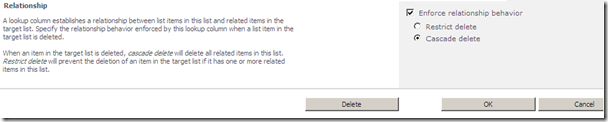
Programmatically enforcing relationship behavior for lookup columns in SharePoint 2010

Adding lookup fields programmatically using feature is a common task in SharePoint 2007/2010. Normally, you would create the site column using a Field feature element. However, The lookup field definition requires the Id of the parent list and you have no way to determine this at design time, besides they will be different from one site to another. ( List Instances are different than Site Columns or Content Types; you cannot specify a list instance ID as the case with Site Columns or Content Types).

This dependency will force you to create Lookup columns using code that look up the parent List ID and uses it to create a new field object to define the site column.

I used to do this frequently in SharePoint 2007 but when yesterday when testing that for SharePoint 2010, I just asked myself, how can I programmatically enforce the relationship behavior ?

If you need more info about list relationships in SharePoint 2010, refer to this blog post.

This is straightforward using the UI from the column settings page and fortunately it’s as easy using code.

3


Consider the following example, I have two lists :

Parent List –> Employees
Child List –> Projects

I have a “Team Leader” field in the “Projects” list referencing the Employees List to specify the team leader of each project in the “Projects List”. To create a lookup field and enforcing the relationship behavior, see the following code snippet:

string teamLeaderFieldInternalName = projectsList.Fields.AddLookup(“Team Leader”, employeesList.ID, false);
SPFieldLookup teamLeaderField = (SPFieldLookup)projectsList.Fields.GetFieldByInternalName(teamLeaderFieldInternalName);
teamLeaderField.LookupField = employeesList.Fields[“Title”].InternalName;
teamLeaderField.RelationshipDeleteBehavior = SPRelationshipDeleteBehavior.Cascade;
teamLeaderField.Update();

The previous code will raise the following exception “This lookup field cannot enforce a relationship behavior because it is not indexed”. To fix you need to set the Indexed property of teamLeaderField to true as shown below :

string teamLeaderFieldInternalName = projectsList.Fields.AddLookup(“Team Leader”, employeesList.ID, false);
SPFieldLookup teamLeaderField = (SPFieldLookup)projectsList.Fields.GetFieldByInternalName(teamLeaderFieldInternalName);
teamLeaderField.LookupField = employeesList.Fields[“Title”].InternalName;
teamLeaderField.RelationshipDeleteBehavior = SPRelationshipDeleteBehavior.Cascade;
teamleaderField.Indexed = true;
teamLeaderField.Update();

You might also want to check the other members in the SPRelationshipDeleteBehavior Enum, I have copied the members along with their description from MSDN for easier reference below :

None: Nothing happens when a parent item is deleted and the child item is left pointing to the parent as an orphan.

Cascade: A cascade delete happens when deleting a parent item deletes all related children items of the related list.

Restrict: Restricts a parent item having any children items in the related list from being deleted.
Recycling list items using LINQ to SharePoint

Another interesting method that I found while investigating LINQ to SharePoint is the RecycleOnSubmit method.

context.Projects.RecycleOnSubmit(aProject);

context.Projects.DeleteOnSubmit(aProject);

If you want to move an item to the Recycle Bin, use the first method but if you want to entirely delete it use the second one.

And of course don’t forget to call context.SubmitChanges() to commit the changes to the content database.

Recursive and Folder-Scoped LINQ Queries in SharePoint 2010

As you might experienced in SharePoint 2007, a CAML query is by default non recursive. In other words, if you execute a CAML query, you will end up with items from the list root folder. This is still the same in SharePoint 2010. You have to define extra query options as shown below in case you want to query all folders and sub folders within a list (Recursive Query) :

qry.ViewAttributes = “Scope=’Recursive'”;

And if you want to scope your query to a certain folder :

qry.Folder = list.ParentWeb.GetFolder("Folders DocLib/2008");

What about LINQ to SharePoint ?

The default behavior is the same, however if recursive querying is the desired behavior, you can use the ScopeToFolder method from your EntityList<T> object.

Note the following queries:

var q = dc.Projects.Where(p => p.DueDate < DateTime.Now.AddMonths(1));
var q = dc.Projects.ScopeToFolder("", true).Where(p => p.DueDate < DateTime.Now.AddMonths(1));

The first one executes against the list root folder while the second one is recursive. You might be wondering about the empty string that I’m passing to ScopeToFolder method. Well, let’s see what MSDN says about the parameters that the method expects.

public IQueryable<TEntity> ScopeToFolder( string folderUrl, bool recursive )

folderUrl –> The URL of the folder.
recursive –> true to include items in subfolders; false to exclude them.

That’s it, if you want to scope your LINQ query to a specific folder, pass the folder URL as the first parameter to the method & “true” if you want the recursive behavior of the query. In the second query, I just wanted the recursive behavior and I didn’t want to scope my query to any folders so I passed an empty string, this does the trick.

Hope this helps!

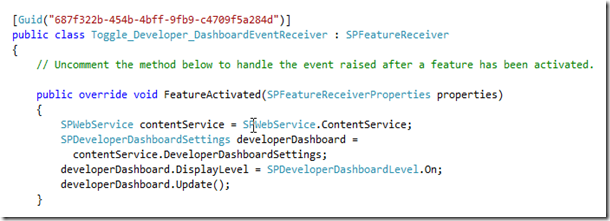
Enabling the developer dashboard programmatically in SharePoint 2010

This is a question that I received during the Egyptian community launch of SharePoint 2010 and Office 2010. The following snippet does the trick!

SPWebService contentService = SPWebService.ContentService;
           SPDeveloperDashboardSettings developerDashboard =
             contentService.DeveloperDashboardSettings;
           developerDashboard.DisplayLevel = SPDeveloperDashboardLevel.On;
           developerDashboard.Update();

The guy who asked me this question wanted to create a farm-scoped feature to easily toggle the developer dashboard instead of using Windows PowerShell or STSADM command line utility. He also promised to share his feature with me once he finishes it.

If you cannot wait and you want to do it yourself, it’s very easy thanks to Visual Studio 2010 and the new SharePoint project and item templates that ships with it. Just open up Visual Studio 2010, create an empty SharePoint project, add a farm-scoped feature, add an event receiver to the feature, copy the code above to the FeatureActivated method, deploy your solution and there you go!

130


1